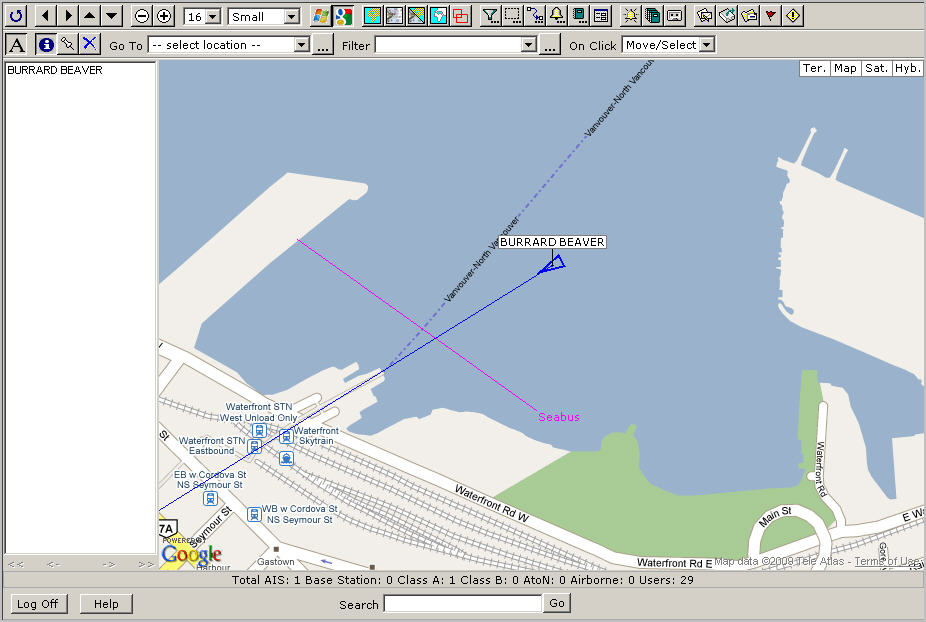
We are going to build an alarm that will be triggered when the Burrard Beaver seabus crosses the Seabus line L, see below.
Creating SeeBus arriving alarm based on a previously build zone/line (Seabus line L)
:
Click
 to open the Alarm Designer panel.
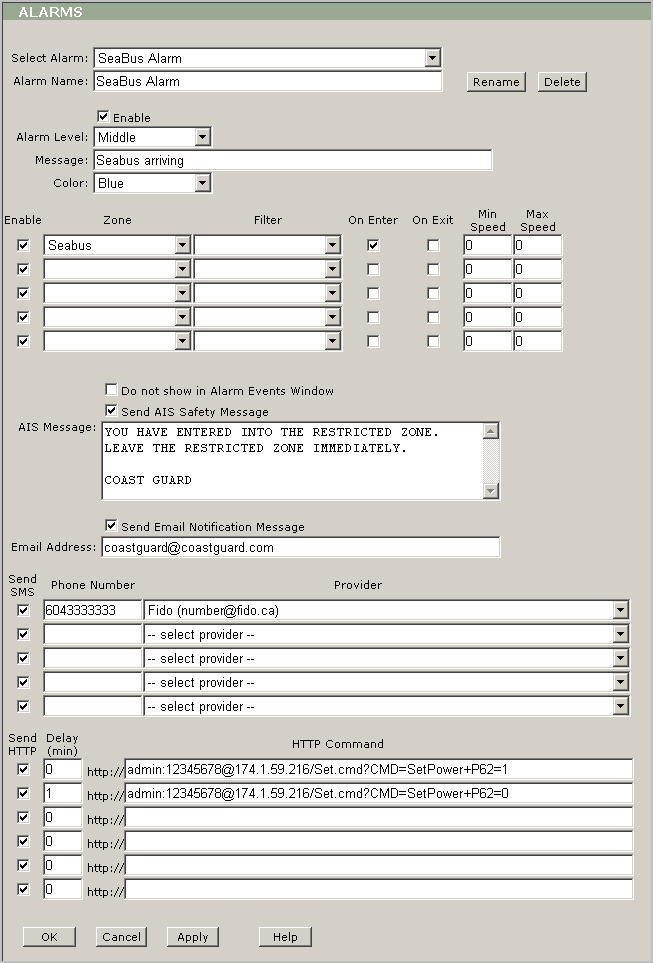
Click the Select Alarm dropdown box and select <New>.
Instead of “Alarm1” type “SeaBus Alarm” in the Alarm field.
Leave Enable checked.
Select “Middle” from Alarm Level.
Type “Seabus arriving” in Message.
Select “Blue” from Color.
Select “Seabus” from Zone.
Leave Filter empty.
Select On Enter.
Leave On Exit unchecked.
Leave “0” in Min Speed.
Leave “0” in Max Speed.
Leave
Do not show in Alarm Events Window unchecked.
Tip: When an alarm
event happens (seabus crosses the line) then Alarm Events Window pops-up.
Check
Send AIS Safety Message.
Tip: If you have AIS transponder
that has a communication with Web VTS then you could send AIS message
to any passing AIS equipped vessel.
Type any message in the AIS Message box. As an example we have typed “You have entered to the restricted zone. Leave the restricted zone immediately. Coast Guard”.
Check
Send Email Notification Message.
Tip: When an alarm event happens (seabus
crosses the line) then an e-mail is sent to the provided e-mail address.
Type an e-mal address in the Email Address box. As an example we have typed “coastguard@coastguard.com”
Leave
Send SMS checked.
Tip: When an alarm event happens (seabus
crosses the line) then SMS is sent to the provided phone number
Type 10 digits phone number in Phone Number .
Select your phone provider from the Provider drop-down list.
Leave Send HTTP checked.
Tip: When an alarm event happens (seabus
crosses the line) then HTTP command is sent to the IP Power. In our
case we are using the IP Power 9258 box to turn the projector on and
off.
Type
number of minutes in Delay (min).
Tip: In our
case the IP Power box is triggered on immediately, because the
first number is 0.Then the IP Power box is triggered off in 1 minute.
It means when the Burrard Beaver seabus crosses the Seabus line then
the projector is turned on right away and then turned off in one minute.
Type
a http command in HTTP Command.
Click OK
to save the changes and return to the main view.
As
soon as the alarm condition occurs, the Alarm window appears.

Note: The alarm pop-up window will appear periodically even you close it, until you select the Hide check box and click Apply.
Tip: You could use the Hide All button to check all alarm’s notifications at once.
As soon as the alarm condition occurs,
the message “You have entered into the restricted zone. Leave the
restricted zone immediately. Coast Guard.” is sent to the vessel that
has entered to the restricted zone. Note: The message will be sent, if you have
a connected AIS transponder.
As soon as the alarm condition occurs,
you receive the following e-mail’s notification.

As
soon as the alarm condition occurs, you receive the following SMS.
SeaBus Alarm, On Enter, 316011651, BURRARD OTTER, 2009-03-03 23:17:17
As
soon as the alarm condition occurs, the IP Power box is triggered
and any connected equipment such as projector or siren is turned on.