 on
the toolbar and you will see the Alarm Designer window.
on
the toolbar and you will see the Alarm Designer window.
To start Alarm Designer click the
Alarm Designer button on
the toolbar and you will see the Alarm Designer window.
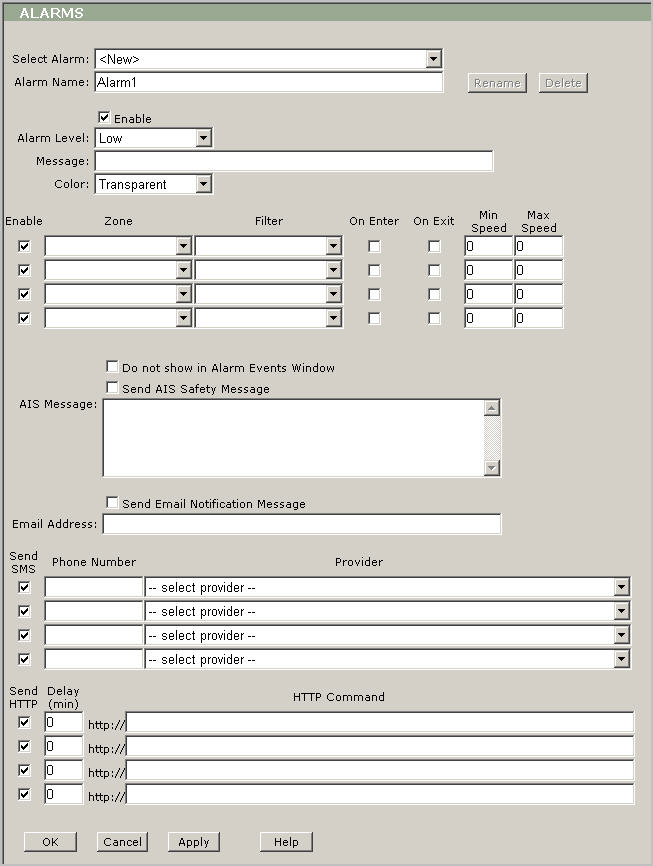
Alarm Designer description:
Select Alarm: Use this drop-down box to select any existing alarm or create a new one.
Alarm Name: Use this box to display and edit an alarm’s name (by default the program uses ”AlarmX” name for every new alarm, where X is a first available number).
Rename: Use this button to rename any existing alarm.
Delete: Use this button to delete any existing alarm.
Enable: Leave this check box checked to enable the alarm.
Alarm Level: Use this drop-down box to select one of three levels of alarm: ”Low”, ”Middle” or ”High”. It could help you to distinguish this alarm among others.
Message: Type in this box a message that appears when the alarm is on. Tip: This message will help you to distinguish the alarm among others.
Color: Use this drop-down box to select a color of the alarm message that appears in the Alarm pop-up window.
Enable: Leave this check box checked to enable a zone.
Zone: Use this drop-down box to select an excising zone.
Filter: Use this drop-down box to select an exciting filter.
On Enter: Select this check box to trigger the alarm when a vessel enters the predefined zone.
On Exit: Select this check box to trigger the alarm when a vessel exits the predefined zone.
Min Speed: Type in this box the minimum speed (Min Speed) in knots. The alarm will be triggered when a vessel sails less than the selected speed.
Max Speed: Type in this box the maximum speed (Max Speed) in knots. The alarm will be triggered when a vessel sails above the selected speed.
Do not show in Alarm Events Window: Select this box, if you don’t want to trigger the Alarm pop-up window.
Send
AIS Safety Message: Check this box, if you what to send AIS Safety
Message to the vessel that violates your prohibitions such as an entering
to the restricted zone, or speed limit.
Tip: The
messages will be sending automatically based on your conditions, but
you have to have a connection to AIS transponder or AIS Base station.
AIS Message: Type the message that you what to send to vessel that violates your prohibitions.
Send E-mail Notification Message: Check this box, if you want to receive a notification about any alarm event.
E-mail Address: Type the e-mail address where all notifications will be sent.
Send SMS: Leave this check box checked to enable of SMS notification.
Phone number: Type the phone number to send SMS to.
Provider: Select your phone provider.
Send HTTP: Leave this check box checked to send HTTP command to IP power switch.
HTTP Command: Type HTTP Command to trigger IP power switch.
OK: Click this button to save the changes and return to the main view.
Cancel: Click this button to cancel all changes and return to the main view.
Apply: Click this button to save the changes but keep the alarm designer window open.
Help: Click this button to open the Web VTS User’s Guide.