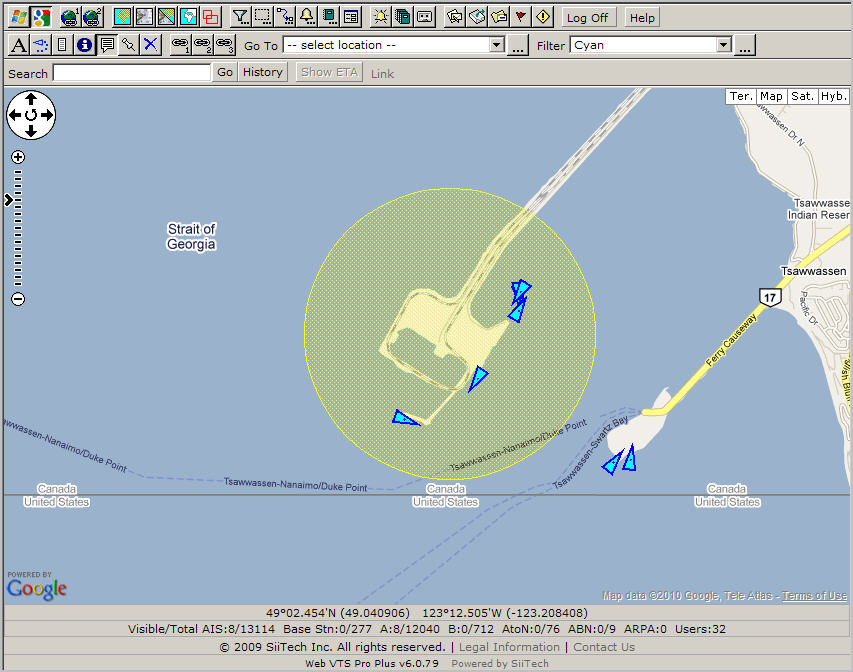
Click  to
open the Zone Designer panel.
to
open the Zone Designer panel.
Select <New> from Select Zone.
Instead of “Zone1” type “Delta Port” in the Zone Name field.
Leave Enable checked.
Select “Circle” from Zone Type.
Leave “1” in the Radius box. That is a default value.
Select “Yellow” from Color (default is “LightCoral”).
Leave Fill checked.
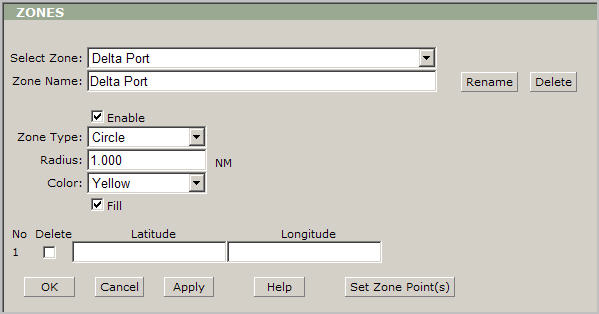
Then you need to select the center of a circle; please click the Set Zone Points button and you will be redirected to the map view.
Next, make a left mouse click on the desired
location to establish the center of the circle zone.
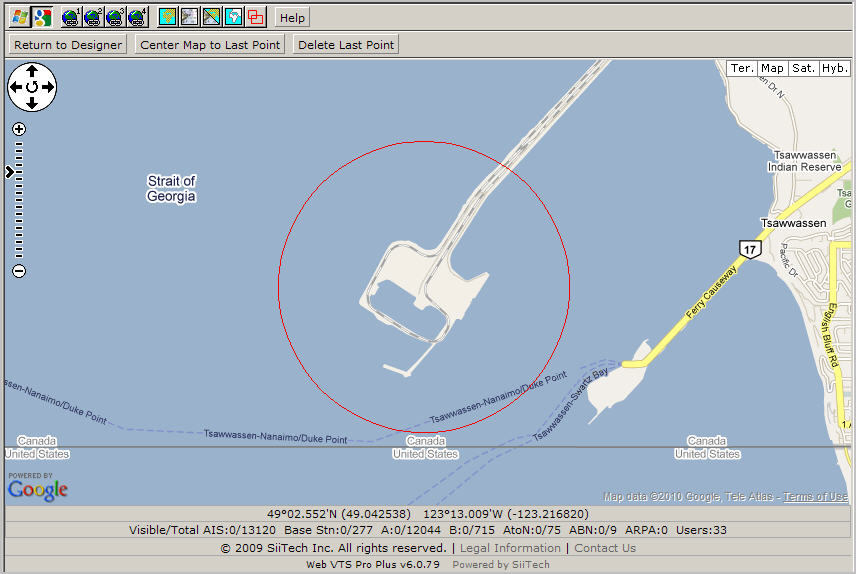
Click the Return to Zone Designer button to
return to the Zone Designer window.
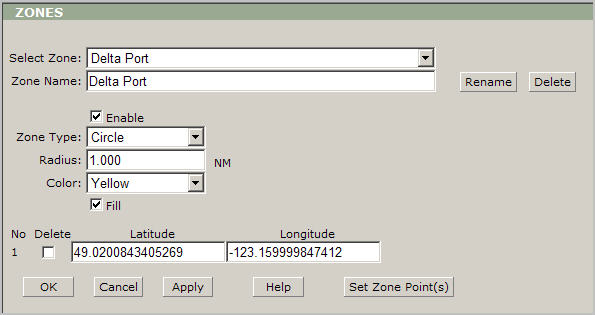
Click the OK button to save your changes and
return to the main view.