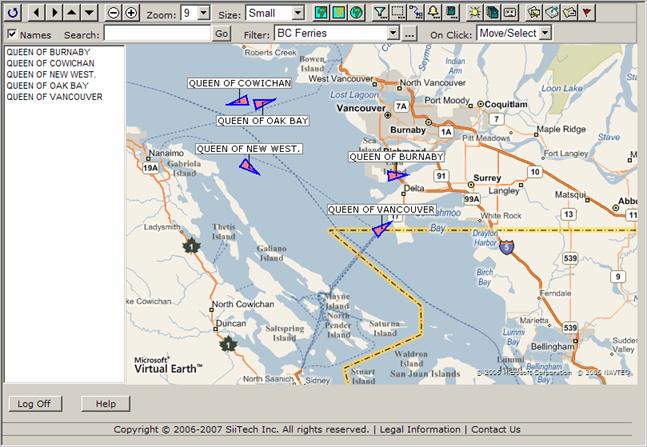
Group of Vessels filter
This filter will display
the group of vessels and hide all others. Before an applying the filter,
we need to prepare a predefined group of the vessels. In this case we
are going to display BC Ferries.
Click  to open the Filter
Designer panel.
to open the Filter
Designer panel.

Click the Groups
button to open the Group Designer panel.
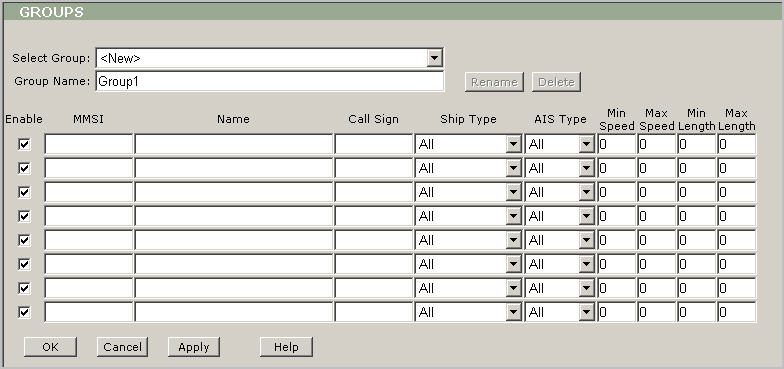
Select <New>
from Select Group. If you open the Group Designer panel first
time, then <New> is already on the spot.
Instead
of “Group1” type “Seaspan Tugs” in the Group Name field.
Type
the names of the vessels in the Name field one by one.
Tip:
By default the Group Designer panel has 8 lines. If you intend to type
more than 8 names then when you are finished the 8th line,
please click Apply and you will see additional lines.
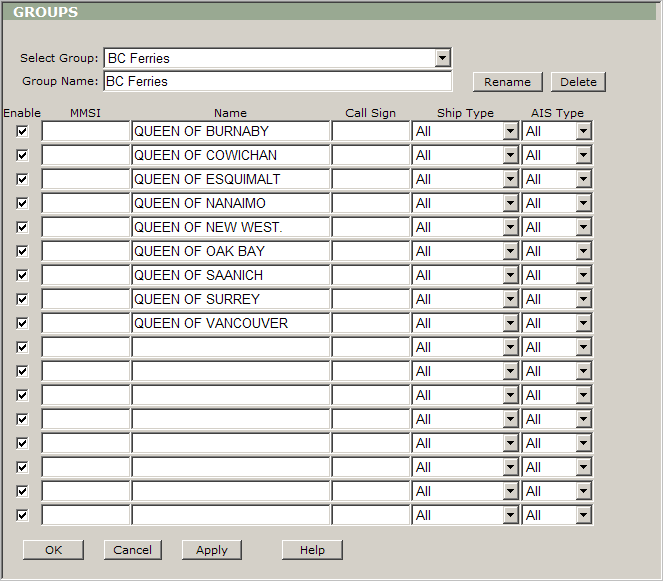
Click
the OK button to save your changes and return to the Filter
Designer panel.
Select
<New> from Select Filter.
Instead
of “Filter1” type “BC Ferries” in the Filter Name field.
Now you can start to
make settings of displaying BC Ferries. Use the fist line.
Leave
Enable checked.
Select
“BC Ferries” from Group.
Leave
MMSI blank.
Leave
Name blank.
Leave
Call Sign blank.
Leave
“All” in Ship Type.
Leave
“All” in AIS Type.
Leave
Show checked.
Select
“LightCoral” from Color.
You can use the second
line to make settings to hide all other vessels:
Leave
Enable checked.
Leave
Group blank.
Type
the asterisk symbol * in the MMSI field (it means “all vessels”).
Leave
Name blank.
Leave
Call Sign blank.
Leave
“All” in Ship Type.
Leave
“All” in AIS Type.
Clear
Show.
Leave
“Transparent” in Color.

Here is the result of
applying this filter: