 on the toolbar and you will see the Report Designer window.
Report Designer allows users to build and customize reports.
To start Report Designer click the Report Designer button on the toolbar and you will see the Report Designer window.
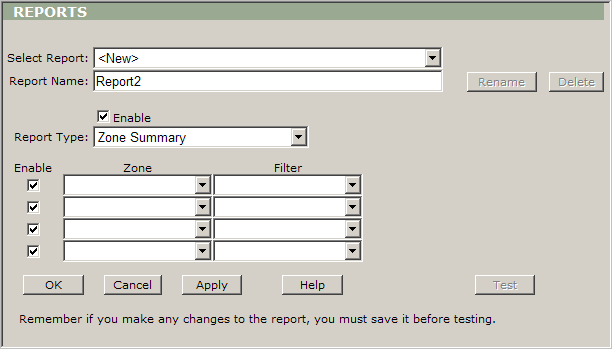
Report Designer description:
Select Report: Use this dropdown box to select any existing report or create a new one.
Report Name: Use this box to display and edit a report’s name (by default the program uses ”r;ReportX” name for every new report, where X is a first available number).
Rename: Use this button to rename any existing report.
Delete: Use this button to delete any existing report.
Enable: Leave this check box checked to enable the report.
Report Type: Use this dropdown box to select any predefined report such as ”r;Zone Summary”, ”r;Extended Zone Summary”, ”r;Arrival/Departure”, ”r;Arrival Time Forecast”, ”r;Berth Time Summary”, ”r;Speed Summary”, ”r;Speed Violation” and ”r;Enter/Exit”.
Enable: Leave this check box checked to include this zone and/or this filter in the report.
Zone: Use this dropdown box to select an excising zone.
Filter: Use this dropdown box to select an excising filter.
Test: Click this button to test the designed report.
OK: Click this button to save the changes and return to the main view.
Cancel: Click this button to cancel all changes and return to the main view.
Apply: Click this button to save the changes but keep the designer window open.