on
the toolbar and you will see the Zone Designer window.
on
the toolbar and you will see the Zone Designer window.
Zone Designer allows users drawing any precise zone on a map/chart. That is powerful tool for visualization of any desired monitoring zone on a map/chart. Also that is a basis for reports.
Zone Designer tool allows creating two types of zones (Circle and Polygon) and two types of lines (Line L and Line R).
To start Zone Designer click the
Zone Designer button on
the toolbar and you will see the Zone Designer window.
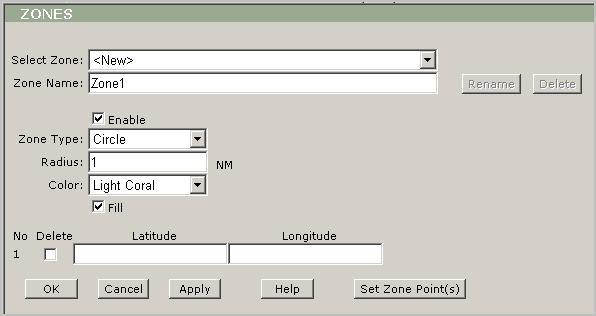
Zone Designer description:
Select Zone : Use this dropdown box to select any existing zone or to create a new one.
Zone Name: Use this box to display and edit a zone’s name (by default the program uses ”ZoneX” name for every new zone, where X is a first available number).
Rename: Use this button to rename any existing zone.
Delete: Use this button to delete any existing zone.
Enable: Leave this box checked to enable a zone.
Zone Type: Use this box to select a type of a zone (Circle or Polygon) or a type of a line (Line L or Line R).
Radius: Type a length of the radius in Nautical Miles (NM). Note: available only for Circle.
Color: Use this dropdown box to select any predefined color of a zone.
Fill: Check this box to hatch a zone.
Latitude
and Longitude: Type
in these boxes a zone’s position. For the circle zone that is a center
of the circle.
Tip: Use
the Add Points button to simplify
this action.
Delete: Check this box to delete any points (latitude and longitude pairs).
Set Zone Points: Use this button to create zone points by clicking on the map.
OK: Click this button to save the changes and return to the main view.
Cancel: Click this button to cancel all changes and return to the main view.
Apply: Click this button to save the changes but keep the designer window open.
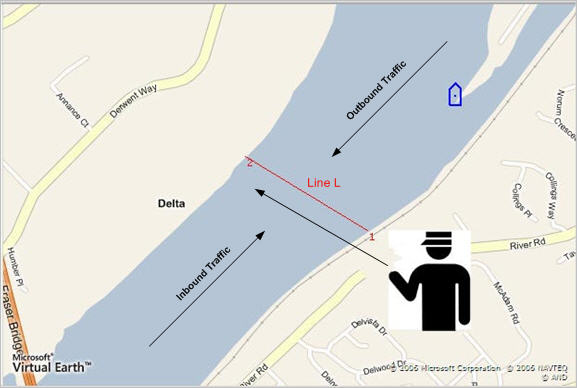
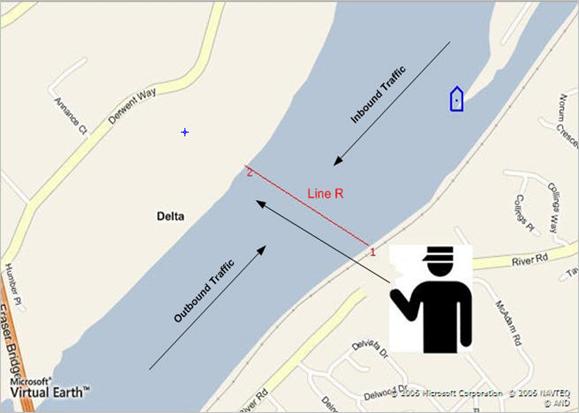
Zone Designer allows drawing two types of line: ”Line L” and ”Line R”. Those lines help to distinguish outbound traffic from inbound one:
If you draw Line L then all inbound traffic will be from your left hand side.
If you draw Line R then all inbound traffic will be from your right hand side.
Tip: To choose the right type of the line, please imagine that you look along the line from the initial point towards the second one. Please see the pictures below.