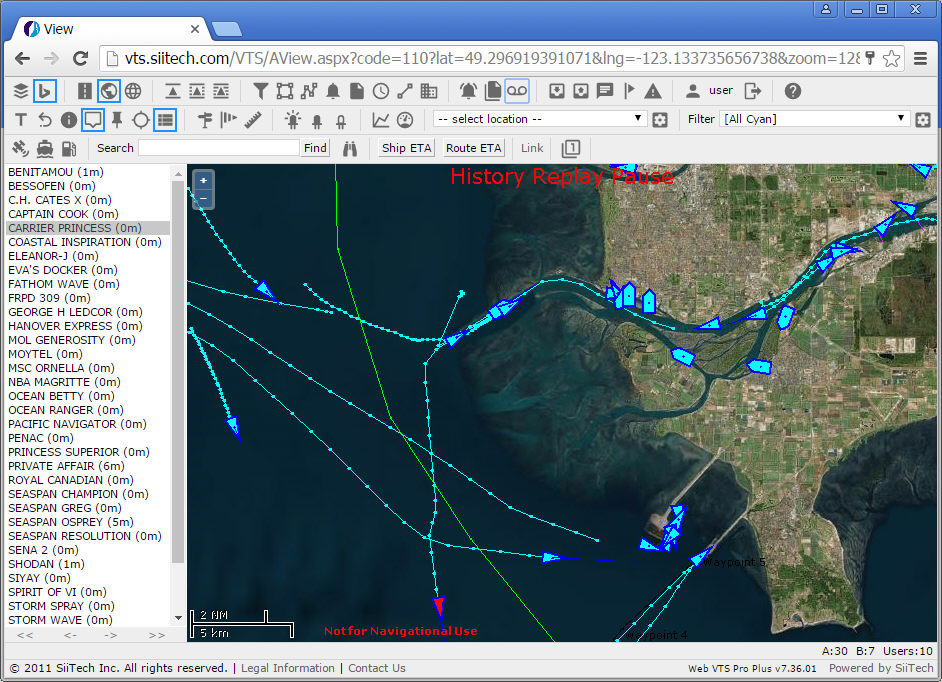
History Replay
The History Replay features:
- Replay a ship's trip step-by-step in predefined time intervals
(e.g. investigating an accident by replaying the ship's movements
on a minute-by-minute basis).
- Display one ship's entire trip during a selected time interval.
- Display trips of all ships in the area determined by your current
view.
- Download trip data for one or several ships in a specified time
interval.
Click History Replay  in the toolbar
to open the History Replay in a new window.
in the toolbar
to open the History Replay in a new window.
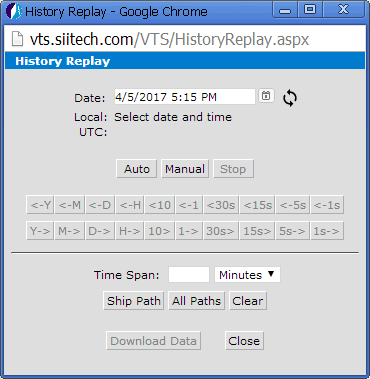
Date. Type your desired starting
date and time (in your local format) or use the drop-down calendar and
hour/minute sliding bars instead. Click  to automatically
input the current time.
to automatically
input the current time.
Auto. Start replaying historic
AIS data; automatically update the screen every minute.
Manual. Use the upper row of
buttons to rewind through historic AIS data in predefined increments.
Use the lower row of buttons to fast forward through historic AIS data
in predefined increments (1sec, 5sec, 15sec, 30sec; 1min, 10min; 1hr;
1day; 1mo; 1yr.).
Stop. Turn History Replay off.
Close. Turn History Replay off
and close the window.
Time Span. Choose a time span
for showing the ship's path.
Ship Path. Draw the path for
a selected ship within a specified period of time. Note:
You must select a ship prior to drawing a path.
All Paths. Draw the paths of
all ships in the area determined by your current view within a specified
period of time.
Download Data. Download trip
data in CSV format for the path(s) drawn on your screen.
Clear. Clear all path drawings
from your current view.
Draw ship paths or download trip data
- Click on the ship to select it.
- Click the History Replay
button to open the History Replay window.
- In the Date field, enter
the end date of the time interval.
- In the Time Span field,
enter the desired length of the time interval.
- Click the Ship Path button.
This will show the ship's path on the chart view.
- Click the Download Data
button to download the path data onto your computer.
- To remove the ship's path from the chart view, click the Clear button.
- To close the window, click the Close
button.
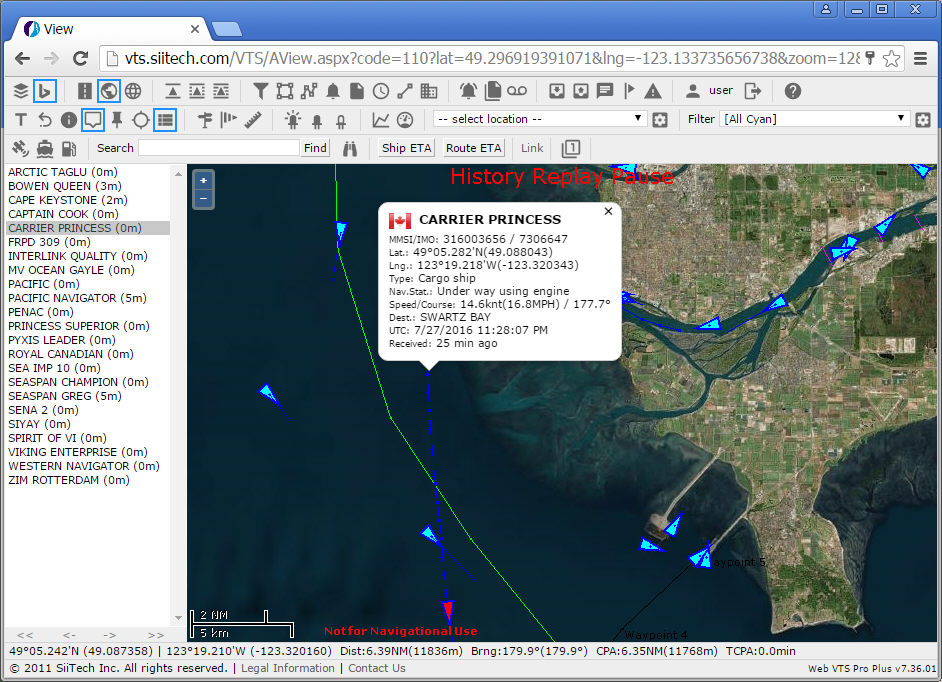
Draw all ship paths or download trip data
- Click the History Replay
button to open the History Replay window.
- In the Date field, enter
the end date of the time interval.
- In the Time Span field,
enter the desired length of the time interval.
- Click the All Paths button.
This will show paths for all ships on the chart view in the screen
area.
- Click the Download Data
button to download the path data onto your computer.
- To remove the ship's path from the chart view, click the Clear button.
- To close the window, click the Close
button.